
This article has entire solution of CCNA 1 v5.1 + v6.0 Chapter 6 PT Practice Skill Assessment – Packet Tracer. It makes students understand all essential concepts in networking through practical configuration tasks in Cisco Packet Tracer such as IP addressing, router/switch configuration, and simple troubleshooting. It is well-suited for preparing students for chapter examinations as well as real-life networking situations.
CCNA 1 v5.1+v6.0 Chapter 6 PT Practice Skills Assessment
This is the CCNA 1 v5.1+v6.0 Chapter 6 PT Practice Skills Assessment – Packet Tracer:
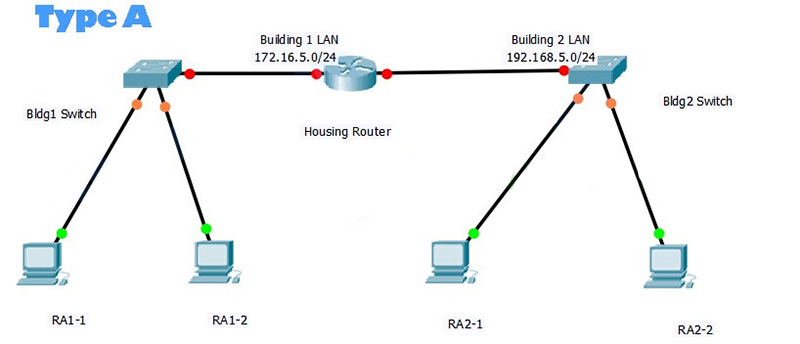
Topology Type A
You will receive one of three possible topologies:
Addressing Table
| Device | Interface | Address | Subnet Mask | Default Gateway |
|---|---|---|---|---|
| Housing | G0/0 | 172.16.5.1 | 255.255.255.0 | N/A |
| G0/1 | 192.168.5.1 | 255.255.255.0 | N/A | |
| Bldg1 | VLAN 1 | 172.16.5.2 | 255.255.255.0 | 172.16.5.1 |
| Bldg2 | VLAN 1 | 192.168.5.252 | 255.255.255.0 | 192.168.5.1 |
| RA1-1 | NIC | 172.16.5.10 | 255.255.255.0 | 172.16.5.1 |
| RA1-2 | NIC | 172.16.5.11 | 255.255.255.0 | 172.16.5.1 |
| RA2-1 | NIC | 192.168.5.10 | 255.255.255.0 | 192.168.5.1 |
| RA2-2 | NIC | 192.168.5.11 | 255.255.255.0 | 192.168.5.1 |
Housing Router Configuration
enable
configure terminal

hostname Housing

enable secret cisco

line console 0
password cisco
login
exit

line vty 0 4
password cisco
login
exit

line aux 0
password cisco
login
exit

service password-encryption

banner motd $Authorized Personnel Only$

interface g0/0
ip address 172.16.5.1 255.255.255.0
no shutdown
description Bldg1 LAN
exit

interface g0/1
ip address 192.168.5.1 255.255.255.0
no shutdown
description Bldg2 LAN
end

write
Bldg1 Switch Configuration
enable
configure terminal

hostname Bldg1

enable secret class

line console 0
password cisco
login
exit

line vty 0 4
password cisco
login
exit

service password-encryption

banner motd $Authorized Personnel Only$

interface vlan 1
ip address 172.16.5.2 255.255.255.0
no shutdown
description Bldg1 – Housing LAN
exit

ip default-gateway 172.16.5.1

end
write
Bldg2 Switch Configuration
enable
configure terminal

hostname Bldg2

enable secret class

line console 0
password cisco
login
exit

line vty 0 4
password cisco
login
exit

service password-encryption

banner motd $Authorized Personnel Only$

interface vlan 1
ip address 192.168.5.252 255.255.255.0
no shutdown
description Bldg2 – Housing LAN
exit

ip default-gateway 192.168.5.1
end

write
RA1-1
IP Address: 172.16.5.10
Subnet Mask: 255.255.255.0
Default Gateway: 172.16.5.1
RA1-2
IP Address: 172.16.5.11
Subnet Mask: 255.255.255.0
Default Gateway: 172.16.5.1
RA2-1
IP Address: 192.168.5.10
Subnet Mask: 255.255.255.0
Default Gateway: 192.168.5.1
RA2-2
IP Address: 192.168.5.11
Subnet Mask: 255.255.255.0
Default Gateway: 192.168.5.1
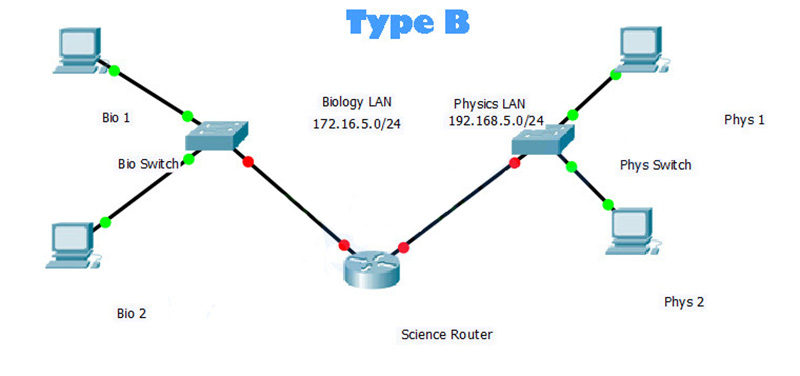
Topology Type B
You will receive one of three possible topologies:
Addressing Table
| Device | Interface | Address | Subnet Mask | Default Gateway |
|---|---|---|---|---|
| Science | G0/0 | 172.16.5.1 | 255.255.255.0 | N/A |
| G0/1 | 192.168.5.1 | 255.255.255.0 | N/A | |
| Bio | VLAN 1 | 172.16.5.2 | 255.255.255.0 | 172.16.5.1 |
| Phys | VLAN 1 | 192.168.5.252 | 255.255.255.0 | 192.168.5.1 |
| Bio 1 | NIC | 172.16.5.10 | 255.255.255.0 | 172.16.5.1 |
| Bio 2 | NIC | 172.16.5.11 | 255.255.255.0 | 172.16.5.1 |
| Phys 1 | NIC | 192.168.5.10 | 255.255.255.0 | 192.168.5.1 |
| Phys 2 | NIC | 192.168.5.11 | 255.255.255.0 | 192.168.5.1 |
Science Router Configuration
enable
configure terminal

hostname Science

enable secret cisco

line console 0
password cisco
login
exit

line vty 0 4
password cisco
login
exit

line aux 0
password cisco
login
exit

service password-encryption

banner motd $Authorized Personnel Only$

interface g0/0
ip address 172.16.5.1 255.255.255.0
no shutdown
description Bio LAN
exit

interface g0/1
ip address 192.168.5.1 255.255.255.0
no shutdown
description Phys LAN
end

write
Bio Switch Configuration
enable
configure terminal

hostname Bio

enable secret class

line console 0
password cisco
login
exit

line vty 0 4
password cisco
login
exit

service password-encryption

banner motd $Authorized Personnel Only$

interface vlan 1
ip address 172.16.5.2 255.255.255.0
no shutdown
description Bio – Science LAN
exit

ip default-gateway 172.16.5.1

end
write
Phys Switch Configuration
enable
configure terminal

hostname Phys

enable secret class

line console 0
password cisco
login
exit

line vty 0 4
password cisco
login
exit

service password-encryption

banner motd $Authorized Personnel Only$

interface vlan 1
ip address 192.168.5.252 255.255.255.0
no shutdown
description Phys – Science LAN
exit

ip default-gateway 192.168.5.1
end

write
Bio 1
IP Address: 172.16.5.10
Subnet Mask: 255.255.255.0
Default Gateway: 172.16.5.1
Bio 2
IP Address: 172.16.5.11
Subnet Mask: 255.255.255.0
Default Gateway: 172.16.5.1
Phys 1
IP Address: 192.168.5.10
Subnet Mask: 255.255.255.0
Default Gateway: 192.168.5.1
Phys 2
IP Address: 192.168.5.11
Subnet Mask: 255.255.255.0
Default Gateway: 192.168.5.1
Topology Type C
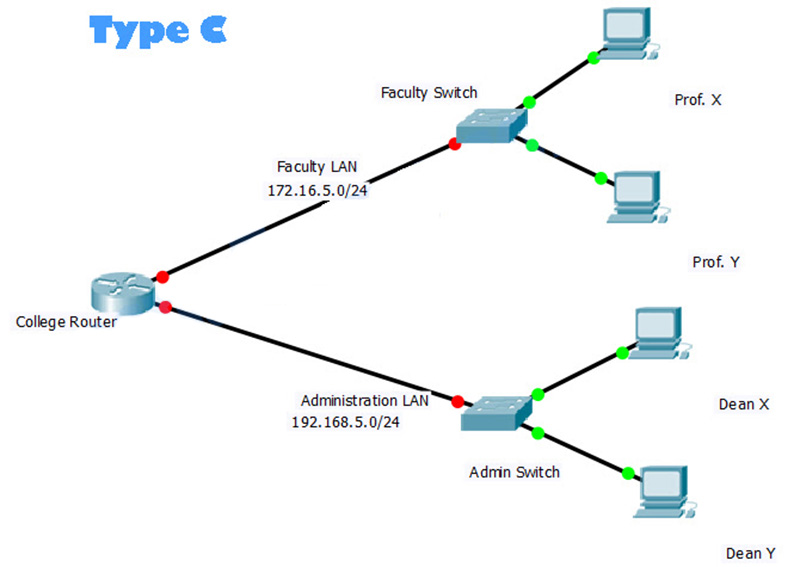
You will receive one of three possible topologies:
Addressing Table
| Device | Interface | Address | Subnet Mask | Default Gateway |
|---|---|---|---|---|
| College | G0/0 | 172.16.5.1 | 255.255.255.0 | N/A |
| G0/1 | 192.168.5.1 | 255.255.255.0 | N/A | |
| Faculty | VLAN 1 | 172.16.5.2 | 255.255.255.0 | 172.16.5.1 |
| Admin | VLAN 1 | 192.168.5.252 | 255.255.255.0 | 192.168.5.1 |
| Prof X | NIC | 172.16.5.10 | 255.255.255.0 | 172.16.5.1 |
| Prof Y | NIC | 172.16.5.11 | 255.255.255.0 | 172.16.5.1 |
| Dean X | NIC | 192.168.5.10 | 255.255.255.0 | 192.168.5.1 |
| Dean Y | NIC | 192.168.5.11 | 255.255.255.0 | 192.168.5.1 |
Objectives
- Perform basic device configuration tasks on a router and a switch
- Configure IP addressing settings on network devices
- Verify Layer 3 connectivity and troubleshoot connectivity issues
Scenario
You are working on a network that has already been partially configured In this assessment you will complete a set of requirements by configunng some additional settings on the Faculty switch and the router. Use the knowledge that you have gained in the curnculum and labs to fulfill the requirements below
Note: If you need a value that is not given to you, you can use any value you want However, you must use the correct values for the default gateways in order that the hosts can communicate.
Requirements
- Determine the values that are missing from the Addressing Table
- Configure all devices with the missing default gateway values
- Name the Faculty switch Faculty Your configuration must match this value exactly
- Secure access to all configuration lines of the Faculty switch
- Secure access to the device configurations of the Faculty switch using the encrypted password
- Ensure that all plain text passwords on the Faculty switch are encrypted
- Configure an appropriate banner on the Faculty switch
- Configure addressing for all devices according to the Addressing Table Most values are provided in the table, others you must determine
- Document interfaces with descnptions on the College router interfaces and the Faculty switch virtual interface
- Save your configurations
- Verify connectivity between all devices All devices should be able to ping all of the other devices
- Troubleshoot any connectivity problems
All devices should be able to ping one another when you have successfully completed the activity.
College Router Configuration
enable
configure terminal

hostname College

enable secret cisco

line console 0
password cisco
login
exit

line vty 0 4
password cisco
login
exit

line aux 0
password cisco
login
exit

service password-encryption

banner motd $Authorized Personnel Only$

interface g0/0
ip address 172.16.5.1 255.255.255.0
no shutdown
description Faculty LAN
exit

interface g0/1
ip address 192.168.5.1 255.255.255.0
no shutdown
description Admin LAN
end

write
Faculty Switch Configuration
enable
configure terminal

hostname Faculty

enable secret class

line console 0
password cisco
login
exit

line vty 0 4
password cisco
login
exit

service password-encryption

banner motd $Authorized Personnel Only$

interface vlan 1
ip address 172.16.5.2 255.255.255.0
no shutdown
description Faculty – College LAN
exit

ip default-gateway 172.16.5.1

end
write
Admin Switch Configuration
enable
configure terminal

hostname Admin

enable secret class

line console 0
password cisco
login
exit

line vty 0 4
password cisco
login
exit

service password-encryption

banner motd $Authorized Personnel Only$

interface vlan 1
ip address 192.168.5.252 255.255.255.0
no shutdown
description Admin – College LAN
exit

ip default-gateway 192.168.5.1
end

write
Prof X
IP Address: 172.16.5.10
Subnet Mask: 255.255.255.0
Default Gateway: 172.16.5.1
Prof Y
IP Address: 172.16.5.11
Subnet Mask: 255.255.255.0
Default Gateway: 172.16.5.1
Dean X
IP Address: 192.168.5.10
Subnet Mask: 255.255.255.0
Default Gateway: 192.168.5.1
Dean Y
IP Address: 192.168.5.11
Subnet Mask: 255.255.255.0
Default Gateway: 192.168.5.1
Also Read: CCNA 1 Chapter 6 2020 Edition
Note: If you have the new question on this test, please comment Question and Multiple-Choice list in form below this article. We will update answers for you in the shortest time. Thank you! We truly value your contribution to the website.